
1. Functional Overview: Strategic Positioning of GenAI Detection in FortiOS 8.0
1.1 Functional Background and Release Information
FortiOS 8.0, as the latest major version of Fortinet's unified operating system, introduces native detection and control capabilities for Generative AI (GenAI) applications in the network security field. According to Fortinet official documentation, the new features in FortiOS 8.0.0 clearly state:
"Application control support has been added for generative AI to enhance the management and categorization of generative AI signatures. This offers improved visibility and insights into AI-related activities."
Source: FortiOS 8.0.0 New Features - Application control support for generative AI
The introduction of this feature marks Fortinet's official inclusion of Generative AI application security control into its core security architecture system. With the widespread adoption of AI services such as ChatGPT, Claude, and Gemini in enterprise environments, how to effectively control AI tool usage while ensuring business efficiency has become a key challenge for security teams. FortiOS 8.0's GenAI detection feature is designed to address this challenge.
1.2 Core Functional Components
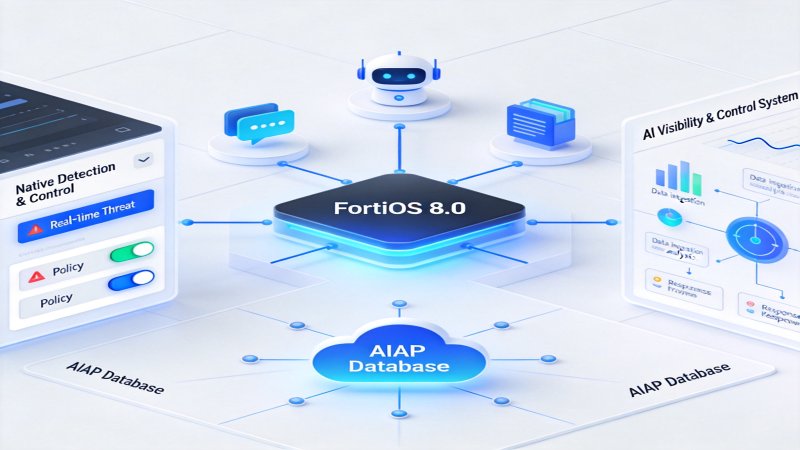
GenAI detection functionality in FortiOS 8.0 contains the following core components, which together constitute a complete AI visibility and control system:
AIAP Database Type Support. FortiOS 8.0 introduces a new AIAP (AI Application Protection) database type, specifically for signature matching of Generative AI rules. This database is continuously maintained by FortiGuard Labs and contains precise identification signatures for mainstream AI applications.
GenAI Dedicated Log Fields. The system adds six dedicated fields in UTM application control logs to record key metadata of AI interactions. These fields cover the complete information chain from user identity to prompt content.
Dedicated Application Category. A new "Generative AI" application category has been added in Security Profiles > Application Signatures, identified as category 36 in CLI, facilitating batch policy configuration for administrators.
FortiView AI Dedicated Widgets. Two new FortiView dashboard widgets - AI Applications and AI Use Cases, for real-time visualization of AI traffic patterns.
1.3 Functional Positioning and Value Proposition
From an enterprise network security perspective, the core value proposition of FortiOS 8.0 GenAI detection functionality is reflected in three dimensions:
First, Shadow AI Discovery and Visibility. Through network-layer detection, identify various AI tools used by employees, helping security teams understand unauthorized AI usage, i.e., Shadow AI phenomenon.
Second, Data Leakage Risk Visualization. By extracting AI interaction metadata (including target data center geographical location, user accounts, prompt content, etc.), help security teams assess potential data leakage risks through AI channels.
Third, Compliance Audit Support. Complete log records and FortiView visualization reports provide technical evidence for meeting increasingly stringent AI regulatory requirements, supporting compliance audit needs.
2. Technical Architecture: FortiOS 8.0 Implementation
2.1 AIAP Database Architecture
AIAP (AI Application Protection) database is the core engine of FortiOS 8.0 GenAI detection functionality. According to official documentation, AIAP database has the following technical characteristics:
Database Type and Update Mechanism. AIAP is an independent database type, updated through FortiGuard Distribution Network (FDN). Similar to traditional application signature libraries, AIAP database uses signature matching to identify AI application traffic. The database version status can be verified through the following CLI command:
# diagnose autoupdate versions | grep -A 6 GenAI GenAI Application Definitions --------- Version: 33.00033 signed Contract Expiry Date: Thu Jan 3 2030 Last Updated using scheduled update on Tue Jun 24 20:59:43 2025 Last Update Attempt: Tue Jun 24 23:10:03 2025 Result: No Updates
Prerequisites for Database Update. Official documentation clearly states that prerequisites for AIAP database update include:
- Device must have valid FMWR (FortiCare Maintenance & Warranty Renewals) contract
- At least one firewall policy has Application Control profile enabled
- FortiGate can normally connect to FortiGuard servers
CLI Category Identifier. Generative AI application category is identified as category 36 in CLI, this value is used when configuring application control entries.
2.2 SSL Deep Inspection Dependency Architecture
Since mainstream AI services are provided through HTTPS access (using TLS 1.2/1.3 encryption), FortiOS 8.0's GenAI detection capability highly depends on SSL Deep Inspection functionality. This architectural design reflects Fortinet's core technical capabilities in encrypted traffic detection.
Man-in-the-Middle Decryption Principle. SSL deep inspection works by establishing bidirectional TLS connections between clients and servers. FortiGate terminates the client's TLS connection while simultaneously establishing a new TLS connection as a client with the target server, performing data forwarding and content inspection between them. This process is transparent to end users.
Association with GenAI Detection. According to official documentation, complete capture of Extended UTM logs (including GenAI dedicated fields such as aiuser, model, prompt, etc.) requires enabling SSL deep inspection. Some GenAI signatures clearly indicate that SSL Deep Inspection is required to work properly, this information can be viewed through the "Requirements" field on the signature details page.
Detection Mode Selection. FortiOS 8.0 supports two SSL detection modes:
| Detection Mode | Description | GenAI Detection Capability |
|---|---|---|
| Certificate Inspection | Only check certificate information, do not decrypt content | Can only identify target server, cannot extract AI metadata |
| Full SSL Inspection (Deep Inspection) | Complete decryption and content inspection | Full support for AI application identification and metadata extraction |
2.3 Application Control Engine Integration
FortiOS 8.0's GenAI detection functionality is deeply integrated with the existing Application Control security engine, this design decision allows administrators to use familiar security profile systems to control AI applications.
Signature Matching Process. When HTTPS traffic is decrypted through SSL deep inspection, the IPS engine uses protocol decoders to analyze HTTP request content. The application identification module then queries the AIAP database to perform signature matching. If matching is successful, the system extracts relevant metadata and executes corresponding actions according to profile settings.
Hierarchical Relationship between Application Categories and Signatures. In FortiOS 8.0's application control architecture, category 36 (Generative AI) is the highest-level classification unit, containing multiple specific application signatures underneath, for example:
- OpenAI.ChatGPT_Post (ChatGPT message submission)
- Google.Gemini_Web (Gemini web version)
- Amazon.Bedrock_* (AWS Bedrock service)
This hierarchical structure allows administrators to perform coarse-grained category-level control or fine-grained individual signature-level control.
2.4 Log Data Structure
FortiOS 8.0 designed dedicated log field structures for GenAI detection, these fields have corresponding displays in both CLI and GUI:
| CLI Log Field | GUI Field Name | Data Meaning | Example Value |
|---|---|---|---|
| aiuser | AI User | AI application user account | user@company.com |
| model | Model | AI model identifier | gpt-4, claude-3 |
| dcgeo | Data Center's Geographical Location | Data center geographical region | US, EU, CN |
| usecase | Use Case | AI usage scenario classification | Conversational_Assistant |
| prompt | Prompt | User prompt content | (Actual input content) |
| cloudgenai | Generate AI Application | Aggregated application information | JSON structure containing multiple dimensions |
Complete Log Example. The following is a complete application control log example from official documentation, showing actual values of all GenAI-related fields:
date=2025-06-25 time=00:13:07 eventtime=1750810387445006017 logid="1059028704" type="utm" subtype="app-ctrl" eventtype="signature" level="information" vd="vd1" appid=53323 srcip=10.1.100.126 dstip=110.18.32.47 srcport=59001 dstport=443 service="HTTPS" direction="incoming" policyid=1 sessionid=1299 applist="GenAI" action="pass" appcat="GenAI" app="OpenAI.ChatGPT_Post" msg="GenAI: OpenAI.ChatGPT_Post" usecase="Conversational_Assistant" aiuser="fftntt@gmail.com" model="auto" dcgeo="US" prompt="generate test log for appctrl" cloudgenai="APP=OpenAI.ChatGPT, DCGEO=US, UseCase=Conversational_Assistant, User=fftntt@gmail.com, UserOrganization=org-F2ZasxjlplRvKPgeVfbXbPeM, HistoryTraining=true, Model=auto, Title='AppCtrl Test Log', Prompt='generate test log for appctrl'" apprisk="low"
From this log, the following key information can be extracted:
- User identity: fftntt@gmail.com
- AI service: OpenAI ChatGPT
- AI model: auto (automatic selection)
- Data center location: United States (US)
- Usage scenario: Conversational assistant
- Prompt content: generate test log for appctrl
- Conversation history training status: HistoryTraining=true
3. Deployment Guide: FortiOS 8.0 Device Operation Steps
3.1 Prerequisite Verification
Before deploying GenAI detection functionality, the following prerequisite verifications need to be completed on FortiOS 8.0 devices. These verification steps ensure the device has the basic environment for normal operation of GenAI detection functionality.
Step 1: Confirm Firmware Version.
Log in to FortiOS 8.0 device management interface, execute the following command to confirm firmware version:
# get system status
Ensure the device is running FortiOS 8.0.0 or higher version.
Step 2: Verify Subscription Status.
Navigate to System > FortiGuard page, or execute the following CLI command to verify subscription status:
# diagnose fortiguard upd-status
Confirm the following subscriptions are active:
- FortiCare Maintenance & Warranty Renewals (FMWR)
- Application Control service
Step 3: Verify FortiGuard Connectivity.
# execute ping update.fortiguard.net # execute ping service.fortiguard.net
Ensure the device can normally resolve and access FortiGuard servers.
3.2 Endpoint CA Certificate Deployment
After enabling SSL deep inspection, endpoint devices need to trust the CA certificate used by FortiGate for re-signing, otherwise users will encounter certificate warnings. The following are certificate deployment steps in different operating system environments.
Windows System Certificate Installation Steps:
- Log in to FortiGate management interface
- Navigate to Security Profiles > SSL/SSH Inspection
- Edit the SSL inspection profile being used (system built-in deep-inspection or custom profile)
- Click the "Download" button next to CA certificate to download the certificate
- On Windows client, double-click the downloaded certificate file
- Select "Local Machine" as storage location
- Place the certificate in "Trusted Root Certification Authorities" store
- Complete the certificate import wizard
macOS System Certificate Installation Steps:
- Download Fortinet_CA_SSL certificate file
- Open "Keychain Access" application on macOS
- Select "System" keychain
- Import certificate through "File > Import Items"
- Double-click the imported certificate, expand "Trust" options
- Set "When using this certificate" to "Always Trust"
Firefox Browser Special Configuration.
Firefox uses independent certificate storage and does not rely on system certificate storage. In Firefox, additional configuration is required:
- Open Firefox settings
- Navigate to "Privacy & Security" page
- In "Certificates" section, check "Allow Firefox to automatically trust third-party certificates you install"
3.3 Application Control Profile Creation
Create GenAI Monitoring Profile via GUI:
- Navigate to Security Profiles > Application Control page
- Click "Create New" button to create new profile
- Enter profile name (such as "GenAI_Monitor")
- Find "Generative AI" category in application category list
- Set the action for this category to "Monitor"
- Configure other parameters as needed
- Click "OK" to save profile
3.4 SSL Inspection Profile Configuration
Create SSL/SSH Profile with Deep Inspection Enabled:
- Navigate to Security Profiles > SSL/SSH Inspection page
- Click "Create New" to create new profile
- Configure the following parameters:
- Name: Enter profile name (such as "new-deep-inspection")
- SSL Inspection Options > Inspection method: Select "Full SSL Inspection"
- CA certificate: Select CA certificate for re-signing
- In Protocol Port Mapping, ensure HTTPS (port 443) has deep inspection enabled
- Click "OK" to save
Create SSL Inspection Profile via CLI:
config firewall ssl-ssh-profile edit "new-deep-inspection" config https set ports 443 set status deep-inspection end set caname "Fortinet_CA_SSL" next end
3.5 Firewall Policy Configuration
Associate Application Control profile and SSL inspection profile to firewall policy:
Configure Firewall Policy via GUI:
- Navigate to Policy & Objects > Firewall Policy page
- Click "Create New" to create new policy
- Configure basic parameters:
- Name: Policy name
- Incoming Interface: Source interface (such as port2)
- Outgoing Interface: Destination interface (such as port1)
- Source: Source address object
- Destination: Destination address object
- Schedule: Schedule time
- Service: Service type (usually select ALL)
- In Security Profiles section:
- Enable Application Control, select the previously created GenAI profile
- Set SSL Inspection to profile with deep inspection enabled
- Enable UTM status
- Enable NAT as needed
- Click "OK" to save policy
3.6 FortiView AI Widget Configuration
Add FortiView AI Applications Widget:
- Navigate to Dashboard > Status page
- Click "Add Widget" button
- Select "FortiView AI Applications" in widget list
- Configure widget parameters (name, data refresh interval, etc.)
- Click "OK" to add widget
Add FortiView AI Use Cases Widget:
Repeat the above steps, select "FortiView AI Use Cases" in widget list.
3.7 Deployment Verification
After completing the above configuration, functional verification is required to ensure GenAI detection works properly.
Step 1: Trigger Test Traffic.
On client PC with CA certificate installed:
- Open browser and visit www.chatgpt.com
- Log in to AI service account
- Enter test prompt (such as "Hello, this is a test")
Step 2: Check Log Generation.
View via GUI: Log & Report > Security Events > Application Control
View via CLI:
# execute log display | grep -i "GenAI"
Step 3: Verify Log Content.
Confirm log contains the following GenAI fields:
- appcat="GenAI"
- app="OpenAI.ChatGPT_Post"
- aiuser, model, dcgeo, usecase, etc. fields have values
Step 4: Verify AIAP Database Update.
# diagnose autoupdate versions | grep -A 6 GenAI
Confirm AIAP database version number is non-zero (such as Version: 33.00033).
4. Configuration Details: FortiOS 8.0 CLI Command Reference
4.1 Application Control Profile CLI Configuration
Basic GenAI Monitoring Configuration (CLI):
config application list edit "GenAI" config entries edit 1 set category 36 set action pass next end next end
Configuration Notes:
- `category 36`: Specify Generative AI application category
- `action pass`: Set action to allow (log only)
Monitor Mode Configuration:
If you need to generate UTM alert events while logging, set action to monitor:
config application list edit "GenAI_Monitor" config entries edit 1 set category 36 set action monitor next end next end
Block Mode Configuration:
If you need to block all GenAI traffic:
config application list edit "GenAI_Block" config entries edit 1 set category 36 set action block next end next end
4.2 Firewall Policy CLI Configuration
Associate Application Control and SSL Inspection Configuration to Policy:
config firewall policy edit 1 set name "GenAI_Inspection_Policy" set srcintf "port2" set dstintf "port1" set action accept set srcaddr "all" set dstaddr "all" set schedule "always" set service "ALL" set utm-status enable set ssl-ssh-profile "new-deep-inspection" set application-list "GenAI" set nat enable next end
Key Parameter Notes:
- `utm-status enable`: Enable UTM functionality
- `ssl-ssh-profile "new-deep-inspection"`: Associate deep inspection profile
- `application-list "GenAI"`: Associate application control profile
4.3 SSL/SSH Inspection Profile CLI Configuration
Create Deep Inspection Profile:
config firewall ssl-ssh-profile edit "new-deep-inspection" config https set ports 443 set status deep-inspection end config ftps set ports 990 set status deep-inspection end config imaps set ports 993 set status deep-inspection end config pop3s set ports 995 set status deep-inspection end config smtps set ports 465 set status deep-inspection end set caname "Fortinet_CA_SSL" next end
4.4 Explicit Proxy Environment Configuration
When using GenAI detection in Explicit Proxy enabled environment, inline IPS needs to be disabled:
config ips settings set proxy-inline-ips disable end
4.5 Database Status Query Commands
Query AIAP Database Version:
# diagnose autoupdate versions | grep -A 6 GenAI
Expected Output Format:
GenAI Application Definitions --------- Version: XX.XXXXXX signed Contract Expiry Date: [Date] Last Updated using scheduled update on [Date] Last Update Attempt: [Date] Result: No Updates / Update succeeded
Abnormal Situation Diagnosis:
If "Version: 0.00000" is displayed, it indicates AIAP database has not been updated yet, possible reasons include:
- No firewall policy has Application Control enabled
- FMWR subscription has expired
- FortiGate cannot connect to FortiGuard servers
5. Business Process: FortiOS 8.0 System Processing Flow
5.1 Traffic Identification and Policy Matching Flow
When users access AI services through FortiOS 8.0 devices, the system processes traffic according to the following flow:
Phase 1: Connection Establishment and Policy Matching.
- Client initiates HTTPS connection request to AI service (such as chat.openai.com)
- FortiGate receives incoming traffic packets
- Firewall engine queries policy table, executes policy matching
- After finding matching policy, checks if SSL/SSH inspection and UTM functionality are enabled
- If deep inspection is enabled, enter SSL decryption flow
Phase 2: SSL Deep Inspection Flow.
- FortiGate impersonates target server, generates forged certificate using local CA certificate
- Client establishes TLS connection with FortiGate (frontend connection)
- FortiGate simultaneously establishes TLS connection as client with real AI server (backend connection)
- FortiGate forwards data between two TLS connections
- Traffic is decrypted to plaintext inside FortiGate
Phase 3: Application Layer Inspection and Signature Matching.
- IPS engine's protocol decoder analyzes decrypted HTTP requests
- Application identification module queries AIAP database
- Execute signature pattern matching, identify AI application type
- If matching is successful, extract GenAI-related metadata
- Execute policy action according to profile settings
Phase 4: Response Generation and Data Forwarding.
- Generate application control log containing GenAI fields
- Determine traffic handling method according to action settings:
- Monitor/Pass: Forward decrypted traffic
- Block: Terminate connection, return replacement page
- Re-encrypt traffic and forward to target recipient
5.2 Log Generation and Reporting Flow
Local Log Generation.
After detecting GenAI traffic, FortiGate automatically generates UTM application control logs containing complete GenAI metadata fields. Logs are stored on device local disk and can be viewed through:
- GUI: Log & Report > Security Events
- CLI: execute log display
FortiAnalyzer Reporting.
If FortiGate is configured with FortiAnalyzer log reporting, logs are synchronously sent to FortiAnalyzer for centralized storage and analysis. On FortiAnalyzer, you can:
- View cross-device AI traffic aggregated data
- Generate periodic AI usage reports
- Configure alert rules based on GenAI fields
FortiView Real-time Aggregation.
FortiView module aggregates GenAI log data in real-time, displaying on dashboard:
- AI Applications widget: Traffic ranking by AI application classification
- AI Use Cases widget: Traffic ranking by usage scenario classification
6. Authorization and Purchase: FortiOS 8.0 License Requirements
6.1 FortiGuard Subscription Service System
FortiOS 8.0's GenAI detection functionality depends on Fortinet's FortiGuard subscription service system. According to official documentation and related product materials, this functionality requires the following types of subscription authorization:
FMWR (FortiCare Maintenance & Warranty Renewals).
FMWR is FortiGate device's basic maintenance contract, main functions include:
- Firmware version upgrade rights
- Technical support services
- FortiGuard database update rights
According to official instructions, AIAP database update requires valid FMWR contract.
Application Control Service.
Application Control is one of the security services included in multiple FortiGuard security bundles:
- UTP (Unified Threat Protection) Bundle
- Enterprise Protection Bundle
- Advanced Threat Protection (ATP) Bundle
6.2 Subscription Bundle Comparison
According to Fortinet official product materials and licensing guides, the functional coverage of each subscription bundle is as follows:
| Bundle Name | Includes Application Control | Includes DLP | Includes AI Security Features | Applicable Scenarios |
|---|---|---|---|---|
| FortiCare Basic Contract | ❌ | ❌ | ❌ | Basic support only |
| UTP Bundle | ✅ | ❌ | ❌ | SME basic protection |
| ATP Bundle | ✅ | ❌ | Partial | Advanced threat protection |
| Enterprise Protection | ✅ | ✅ | ✅ | Large enterprise comprehensive protection |
6.3 Subscription Expiration Impact
When related subscriptions expire, the following impacts will occur:
FMWR Expiration Impact:
| Function | Post-Expiration Status |
|---|---|
| Firmware Upgrade | Blocked from upgrading to new versions |
| FortiGuard Updates | Stop updates |
| AIAP Database | Stop updates (downloaded version still usable) |
Application Control Subscription Expiration Impact:
| Function | Post-Expiration Status |
|---|---|
| New Signature Download | Stop |
| Deployed Detection | Continue working (using last downloaded signatures) |
| New AI Application Identification | Unable to identify |
6.4 Purchase Recommendations
According to different enterprise scales and AI security needs, recommended subscription schemes are as follows:
Small and Medium Enterprises (less than 100 employees):
Recommended Bundle: UTP Bundle
- Includes complete Application Control functionality
- Includes IPS, antivirus, web filtering and other basic security services
- High cost-effectiveness, meets basic AI visibility needs
Medium to Large Enterprises (100-1000 employees):
Recommended Bundle: Enterprise Protection
- Includes Application Control and DLP
- Supports data leakage prevention and AI usage linkage control
- Includes AI-based Inline Malware Prevention
Large Enterprises/High Security Requirement Environments:
Recommended Bundle: Enterprise Protection + FortiAnalyzer + SOCaaS
- Complete AI visibility and control
- Centralized log analysis and reporting
- Security Operations Center managed services
7. Summary and Outlook
7.1 Functional Value Review
FortiOS 8.0's GenAI detection functionality brings the following core values to enterprise network security architecture:
Native Integration, Easy Deployment. As a core security feature of FortiOS 8.0, GenAI detection is seamlessly integrated with existing Application Control and SSL deep inspection systems. Administrators can quickly deploy AI control capabilities using familiar configuration patterns without learning entirely new security modules.
Rich Metadata, Complete Visibility. Through six dedicated log fields (aiuser, model, dcgeo, usecase, prompt, cloudgenai), the system can record complete contextual information of AI interactions, providing solid data support for security analysis and compliance audits.
Intuitive Visualization, Efficient Operations. FortiView AI Applications and AI Use Cases widgets provide intuitive AI usage pattern display, helping security teams quickly understand AI usage within the organization and identify high-risk behaviors.
7.2 Technology Evolution Trends
Looking ahead, the GenAI security control field will present the following technology development trends:
Intelligent AI Application Identification. With the diversification of AI service forms (API calls, SDK integration, Agent frameworks, etc.), traditional signature matching methods may face challenges. Fortinet may introduce more AI/ML technologies to achieve automatic identification of unknown AI applications.
Deep Integration with DLP. AI usage is closely related to data leakage risks. Future versions may enhance GenAI detection and DLP integration capabilities, providing more precise sensitive information detection and blocking.
Extension to Runtime Security. Network layer traffic inspection is the first line of defense for AI security. For more complex threats (such as prompt injection, model adversarial attacks), it needs to be combined with runtime security technologies to form a complete AI security protection system.
7.3 Implementation Recommendations
For enterprises planning to deploy GenAI detection functionality in FortiOS 8.0 environment, it is recommended to follow the following implementation path:
Phase 1: Assessment and Preparation (1-2 weeks).
- Confirm device firmware version and subscription status
- Assess network architecture, determine deployment scope
- Prepare CA certificate and endpoint distribution plan
Phase 2: Pilot Deployment (2-4 weeks).
- Deploy GenAI detection in partial areas
- Use Monitor mode to collect baseline data
- Analyze AI usage status and risk points
Phase 3: Policy Optimization and Operations (Continuous).
- Formulate AI usage policy based on pilot data
- Gradually adjust policy to target state
- Establish continuous monitoring and reporting mechanisms
Through a progressive implementation path, enterprises can effectively control security risks brought by Generative AI while ensuring business efficiency.
References
- FortiOS 8.0.0 New Features - Application control support for generative AI. https://docs.fortinet.com/document/fortigate/8.0.0/new-features/679448/application-control-support-for-generative-ai
- FortiOS 8.0 Administration Guide - Protecting GenAI access using application control. https://docs.fortinet.com/document/fortigate/8.0.0/administration-guide/679448/protecting-genai-access-using-application-control
- FortiGuard Enterprise Protection Bundle Product Information. https://www.cdw.com/product/fortiguard-enterprise-protection-bundle-subscription-license-renewal-3-y/7838230
- FortiGate License Upgrade Restriction Instructions. https://handbook.fortinet.com.cn/system_mgmt/firmware_and_config/firmware_version/firmware_license.html
Why it Matters
FortiOS 8.0's GenAI detection functionality provides enterprises with a complete AI visibility and control system, a key technical means to address Shadow AI and data leakage risks, meeting the urgent needs of enterprises for AI tool control.
DECISION
For enterprises using FortiGate, it is recommended to deploy GenAI detection functionality in Monitor mode first, establish AI usage baseline before gradually transitioning to stricter control policies, while assessing SSL deep inspection deployment costs and endpoint certificate distribution complexity.
PREDICT
In the future, GenAI detection may be deeply integrated with DLP to achieve sensitive information detection in AI interaction content, while potentially introducing AI-driven signature generation capabilities to achieve rapid identification of emerging AI applications.
Get 3-5 key AI infrastructure signals weekly →
💬 Comments (0)